| Back to menu |
| |
| Turning Browser Cache Off |
| |
| |
If your browser does not appear in this document, they are not on our supported browser list. Please contact your browser's vendor for information on turning off the caching feature. |
|
| |
|
| |
Turning Browser Cache Off |
| |
Netscape 7.1 |
| |
Netscape 6.2 |
| |
IE 5.5/6 |
| |
|
| |
Clearing
Browser Cache |
| |
Netscape 7.1 |
| |
Netscape 6.2 |
| |
IE 5.5/6 |
| |
|
| |
Netscape 7.1 |
| |
|
 |
| |
1. |
In your Edit menu, select the option "Preferences". |
| |
2. |
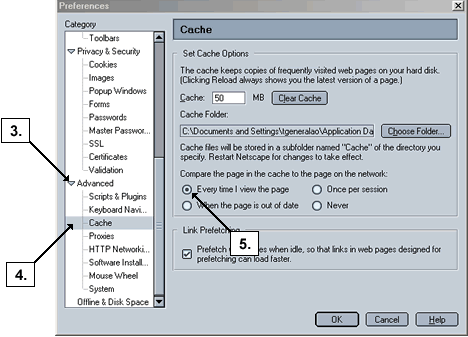
The window (pictured above) will open. |
| |
3. |
In the left-hand menu list, click on the arrow next to the "Advanced" option to expand its list. |
| |
4. |
Within the expanded list, click on "Cache" to highlight that option. |
| |
5. |
Underneath the section titled "Compare the page in the cache to the page on the network:", select the radio button next to "Every time I view the page" (if it is not selected by default). |
| |
6. |
Click the "OK" button to apply the settings and close the Preferences window. |
| |
|
|
| |
|
Back to top |
| |
|
|
| |
Netscape 6.2 |
| |
|
 |
| |
1. |
In your Edit menu, select the option "Preferences". |
| |
2. |
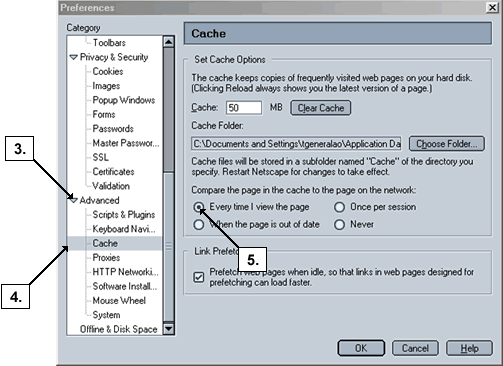
The window (pictured above) will open. |
| |
3. |
In the left-hand menu list, click on the [+] sign next to the "Advanced" option expand its list. |
| |
4. |
Within the expanded list, click on "Cache" to highlight that option. |
| |
5. |
Underneath the section titled "Compare the page in the cache to the page on the network:", select the radio button next to "Every time I view the page" (if it is not selected by default). |
| |
6. |
Click the "OK" button to apply the settings and close the Preferences window. |
| |
|
|
| |
|
Back to top |
| |
|
|
| |
IE 5.5/6 |
|
|
 |
| |
1. |
In your Tools menu, select the option "Internet Options". |
| |
2. |
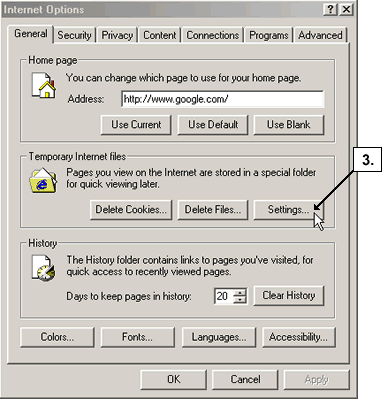
The window pictured above will open. |
| |
3. |
Click on the "Settings" button located in the "Temporary Internet files" section. |
| |
|
 |
| |
4. |
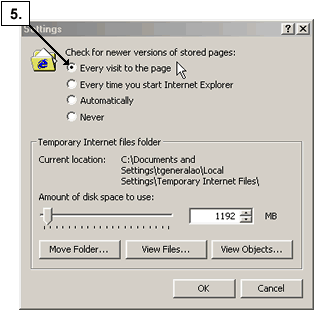
This will open a separate window titled "Settings" (pictured above). |
| |
5. |
Under the section titled "Check for newer versions of stored pages:", select the radio button next to the option "Every visit to the page" (if not already selected by default). |
| |
6. |
Click the "OK" button to apply the changes and close the Settings window. |
| |
7. |
Now click on the "OK" button in the "Internet Options" window to close your Internet Options. |
| |
|
|
| |
|
Back to top |
| |
|
|
| |
|
|
| Clearing Browser Cache |
| |
|
|
| |
|
If you are using a public computer and you cannot apply changes to the browser, please contact your administrator for help. If you cannot set the Cache option covered in the previous section, here is another option that will delete the page files you have visited from your computer. |
|
| |
|
|
| |
Netscape 7.1 |
| |
|
 |
| |
1. |
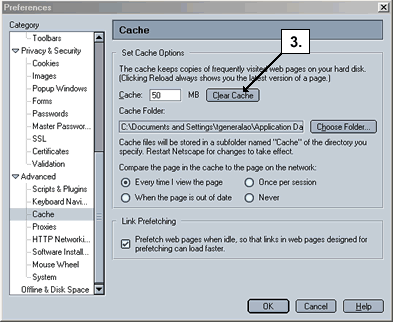
In your Edit menu, select the option "Preferences". |
| |
2. |
The window (pictured above) will open. |
| |
3. |
Click on the “Clear Cache” button |
| |
|
|
| |
|
Back to top |
| |
|
|
| |
Netscape 6.2 |
| |
|
 |
| |
1. |
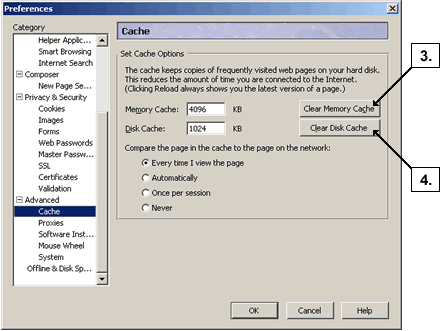
In your Edit menu, select the option "Preferences" |
| |
2. |
The window (pictured above) will open. |
| |
3. |
Click on the Clear Memory Cache button. |
| |
4. |
Click on the Clear Disk Cache button. |
| |
|
|
| |
|
Back to top |
| |
|
|
| |
IE 5.5/6 |
| |
|
 |
| |
1. |
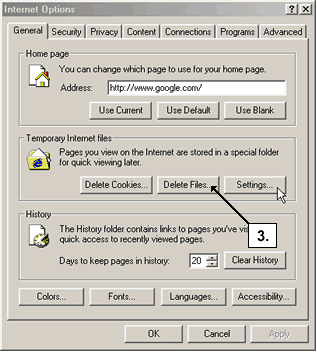
In your Tools menu, select the option "Internet Options". |
| |
2. |
The window pictured above will open. |
| |
3. |
Click on the "Delete Files" button. |
| |
|
 |
| |
4. |
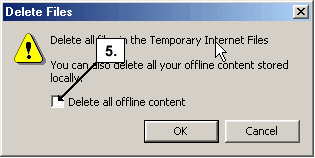
The window pictured above will open. |
| |
5. |
Place a check next to "Delete all offline content". |
| |
6. |
Click on the "OK" button. |
| |
|
|
| |
|
Back to top |