| Back to menu |
| Enabling JavaScript in your browser |
| For explanations on supported and unsupported browser versions, please see Supported/Unsupported Browsers |
| |
| Internet Explorer 5.0/5.5 users |
| Netscape Communicator 6.2 users |
| Netscape Communicator 7.02 users |
| AOL users |
| |
| Internet Explorer 5.0/5.5 Users |
| |
| |
1. |
To enable Javascript, scroll down to the Scripting section of the same window. To access the Bill Pay site, your browser must support JavaScript and Java. You must select the Enable radio button under Active Scripting. |
| |
2. |
Click OK to close the Security Settings dialog. |
| |
3. |
Locate the Content Advisor area of the Content tab. |
| |
4. |
The radio
button should read Enable. If it does not, click the Disable button
and you will be prompted to enter the password to disable this. If
the password is forgotten, please contact a customer service representative
for further instructions. |
| |
5. |
Click OK to close the Internet Options dialog. |
| |
6. |
Hit the F5 key to refresh your browser. (Note: If you are using Windows XP, you will need to restart your computer for the changes to take place) |
| |
|
For Bill Pay support, please call |
| |
|
Top of page |
| |
|
|
| Netscape Communicator 6.2 |
| |
|
|
| |
1. |
Select Edit from the taskbar at the top of the browser screen. |
| |
2. |
From the drop-down menu choose Preferences. |
| |
3. |
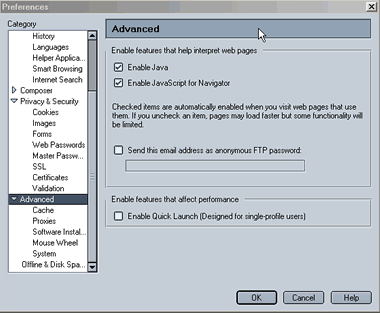
On the Category menu on the left, click on Advanced. |
| |
4. |
On the list at the right, make sure that the checkbox next to Enable JavaScript for Navigator is checked. If not, click in the check box. |
| |
|
 |
| |
5. |
Then, click on OK at the bottom. That's it! |
| |
|
For Bill Pay support, please call |
| |
|
Top of page |
| |
|
|
| Netscape Communicator 7.02 |
| |
| |
1. |
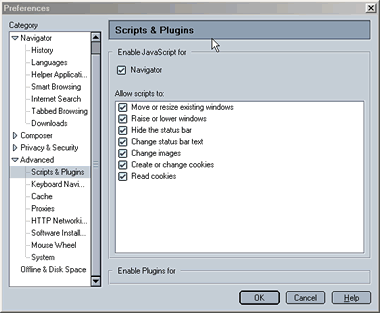
To enable Javascript,click the arrow next to the word Advanced. |
| |
2. |
In the menu that appears left click on scripts & plugins. |
| |
|
 |
| |
3. |
In the window that appears make sure that the checkbox Enable Javascript for Navigator is checked. |
| |
4. |
Click OK to exit this. Restart your Browser for this to take effect. |
| |
|
For Bill Pay support, please call |
| |
|
Top of page |
| |
|
|
| AOL users |
| |
| |
1. |
Open your browser. |
| |
2. |
From the menu
bar, select My AOL | Preferences icon. |
| |
3. |
Click
on the WWW Zone section. If any setting other than Custom is selected,
JavaScript is already enabled. If Custom is selected, you must make
sure that JavaScript is enabled. |
| |
4. |
Click on the Settings button. |
| |
5. |
In the Security Settings section, scroll down to the Scripting section. |
| |
6. |
Under Active scripting, select either Prompt (which will present you with a dialog box every time active scripting is encountered) or Enable (which will fully enable active scripting without user interaction). |
| |
7. |
Click OK to close the Security Settings window |
| |
8. |
Click “Yes” in the resulting warning box if changes were made |
| |
9. |
Click OK to save all changes. |
| |
10. |
Close the Internet Options window. |
| |
|
Top of page |